How to make a video collage
A video collage puts several clips in one frame, playing at the same time or one after another. Here is how to make one from start to finish with a free online editor — on a phone, a PC or a Mac, with nothing to install.
The short version
Open the editor1.Pick a layout and a format
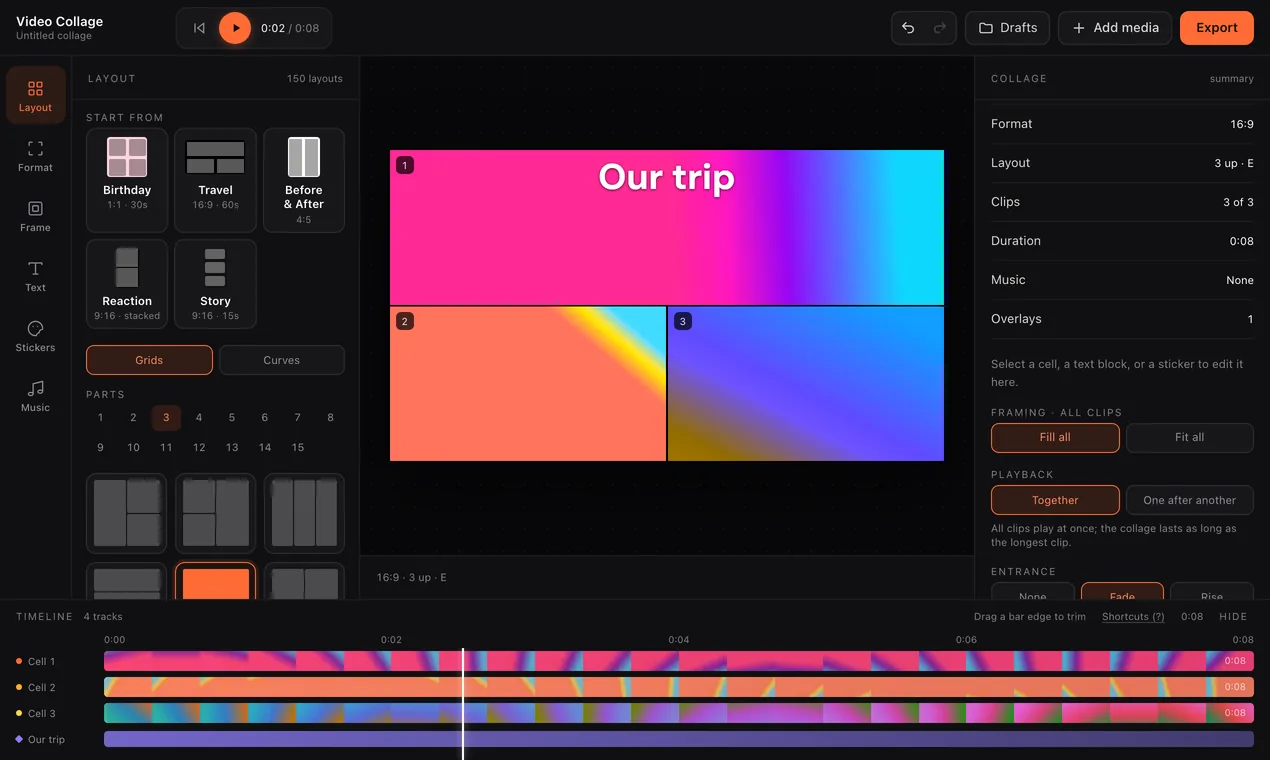
Open the online editor. The Layout tab has 150 grids — side by side, stacked, 2×2, 3×3, picture-in-picture and more, up to fifteen cells — plus 115 curved and shaped layouts. Pick one with as many cells as you have clips; you can change it later and your clips refill the new cells in order.
Then choose the shape of the video under Format. Match it to where the collage will be watched: 9:16 for TikTok, Reels, Shorts and stories, 4:5 or 1:1 for an Instagram or Facebook feed, 16:9 for YouTube or a TV.
In a hurry? The Start from tiles at the top of the Layout tab set up a whole collage in one tap — Birthday, Travel, Before & After, Reaction and Story each choose the layout, format, colour look, caption and length for you.
2.Add your clips and photos
Press Add media and choose several videos or photos at once — they fill the empty cells in order — or tap a single cell to fill just that one. You can also drag files straight onto the canvas. Any cell takes a photo as well as a video, and nothing is uploaded: the files stay on your device.
3.Line the clips up
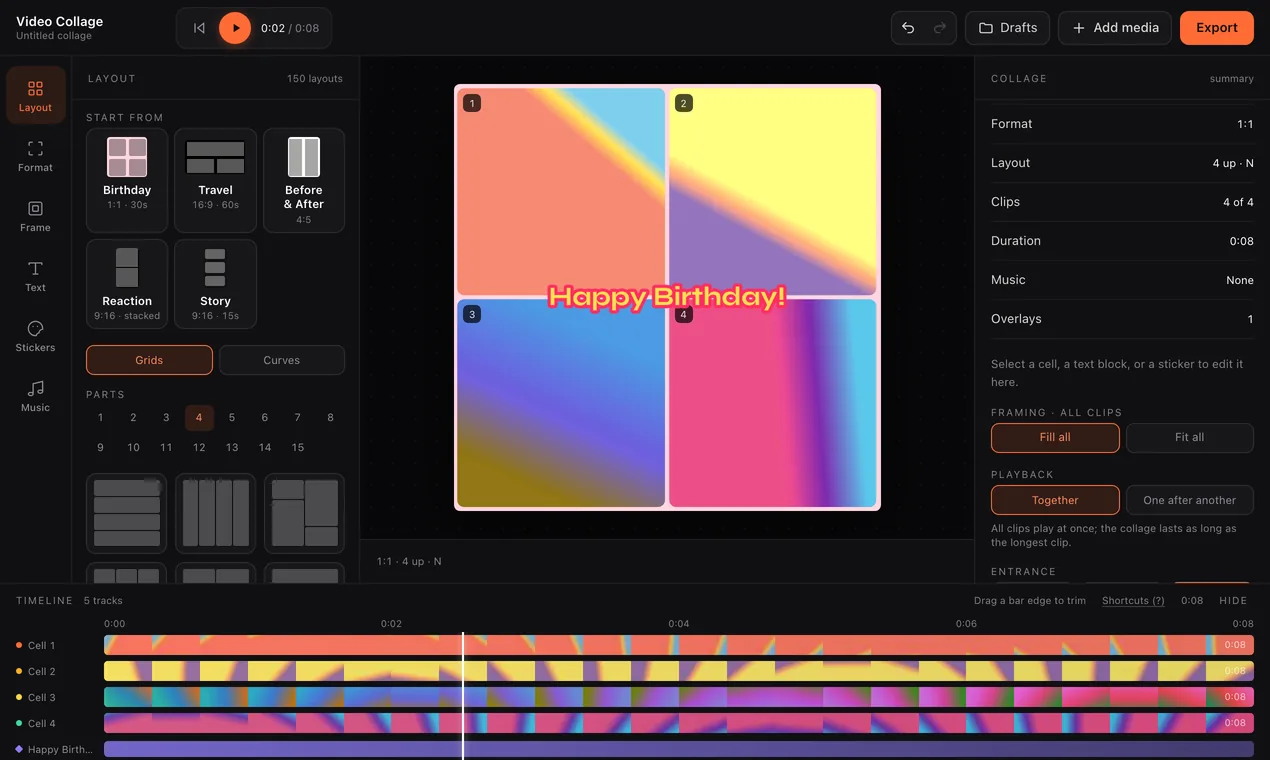
A collage looks deliberate when the subject of every clip sits well inside its cell. Drag inside a cell to move the picture, and use the cell's zoom to crop in closer. Fill all crops every clip to fill its cell; Fit all shows each whole frame instead. Drag a clip onto another cell to swap them, and drag the borders between cells to give one more room.
On the timeline, drag the ends of a clip's bar to trim it, so the moments that matter line up. Choose whether the clips play together or one after another.
4.Add music and text
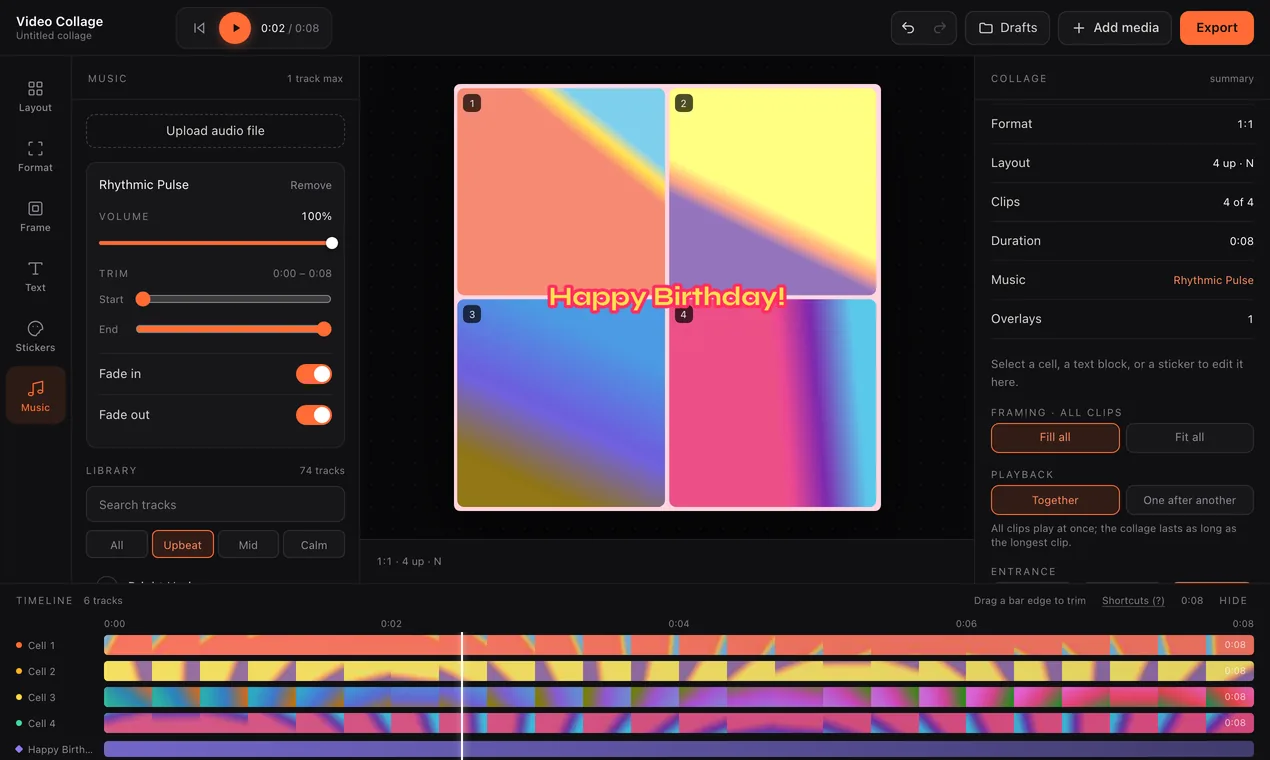
The Music tab has a free library sorted into Upbeat, Mid and Calm, or you can upload your own track. Trim it to the part you want; it fades in and out at the collage's start and end on its own. Lower a clip's volume, or mute it, if its sound fights the music.
Text adds a caption or title — change the words, font and colour — and Stickers adds graphics from dozens of sticker packs. Both can be set to appear only for part of the video.
5.Finish it
A few touches make it look finished: a colour look so clips shot on different phones match, an entrance so clips fade or rise in, a border and rounded corners under Frame, and a length preset — 15, 30 or 60 seconds — to cut the collage to fit a story or a post.
6.Export and share
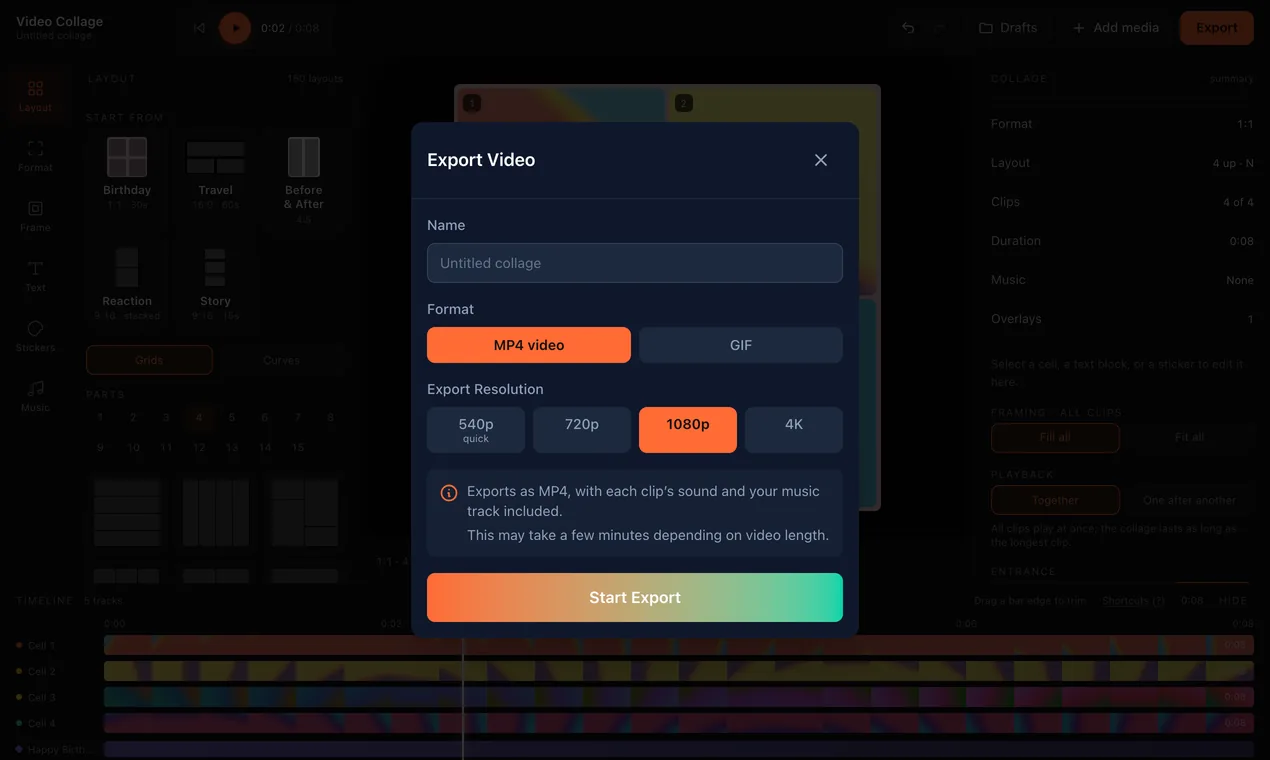
Press Export, name the video, and choose MP4 — from 540p to 4K — or a GIF. The video is made in your browser, so it takes a moment on longer collages, but there is no upload, no queue and no watermark. On a phone, the finished file can go straight to the share sheet.
Tips for a collage that looks good
- Fewer clips, bigger cells
- Two to four clips read on a phone screen; nine can work for a 3×3 grid of short moments, but each cell is small.
- Keep it short
- Most collages are watched on a phone in a feed — 15 to 30 seconds is plenty. Use the length presets rather than trimming every clip by hand.
- Put the action in the middle
- A cell crops its clip; move each picture so faces and the main action are not cut off at the edge.
- One look for every clip
- Clips from different cameras rarely match. Give them the same colour look, or all clips at once with “Apply to all clips”.
- Mind the sound
- Several clips playing together all make noise. Keep the one that matters, mute the rest, and let music fill the gaps.
- Export at the size it will be watched
- 1080p is sharp on any phone and exports faster than 4K; keep 4K for large screens.
On a phone
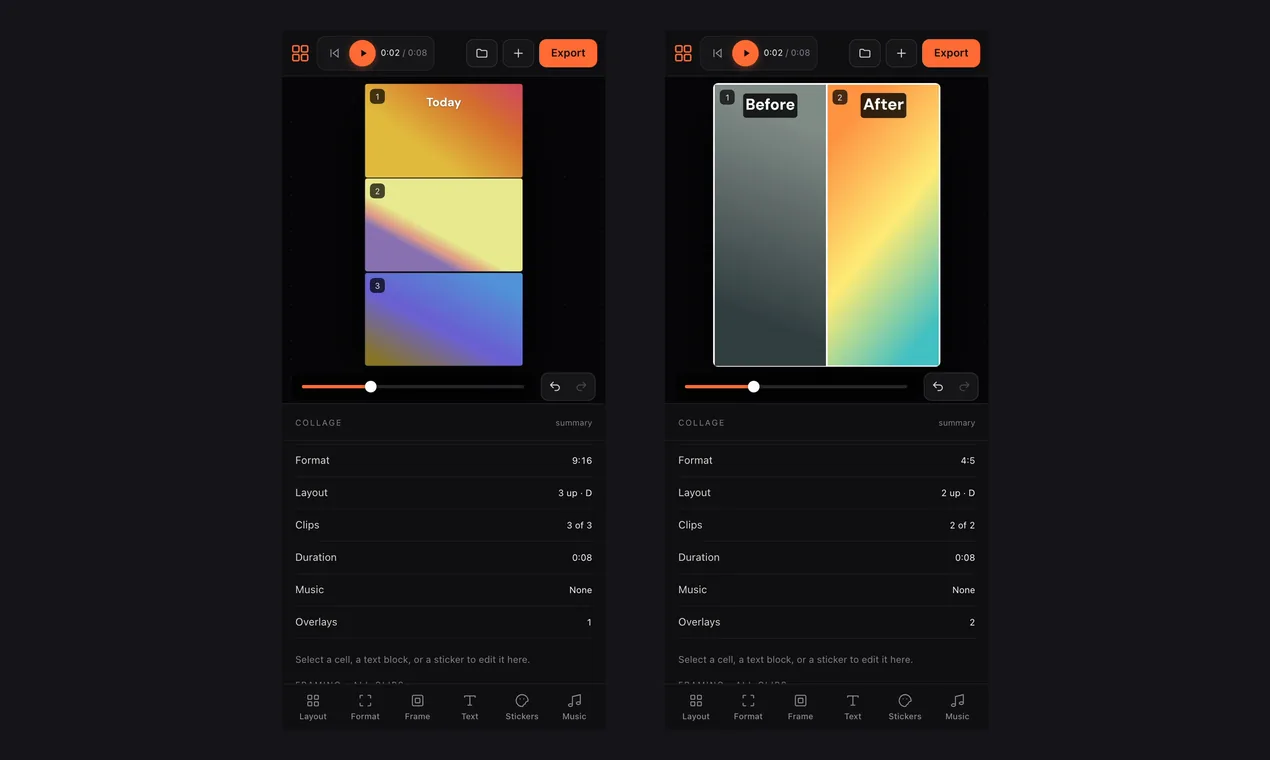
Everything above works the same in a phone's browser. The tools move to a bar along the bottom of the screen and the canvas sits above them; tap a cell to add a clip to it.
Common questions
- How do I make a video collage on a PC or Mac?
- Open videocollage.onl/editor in Chrome, Edge or Safari. It runs in the browser, so there is nothing to install, and a computer exports long or 4K collages fastest.
- Can I make a video collage on my phone?
- Yes — the same editor works in the phone’s browser, with the tools in a bar along the bottom. For long 4K videos a laptop is quicker.
- Is it free, and is there a watermark?
- Making and exporting a collage is free, with no sign-up and no watermark on the video.
- Can I mix photos and videos?
- Yes. Any cell takes a photo or a video, and you choose how long each photo stays on screen.
- Are my videos uploaded anywhere?
- No. Editing and exporting happen on your own device, inside the browser tab.
Guides for a specific kind of collage: two videos side by side · video grids · with music · photos and videos · birthday · before and after