How to make a video from photos and clips
You do not need to edit anything to turn a camera roll into a video. Add your photos and clips, choose a feel, and the app picks the moments, cuts them to the music and arranges them in collage layouts. Here is how, in four steps — free, in your browser.
The short version
Open the AI video collage1.Choose your photos and clips
Open the AI video collage and add between 2 and 20 photos and videos, up to 400 MB each, from your phone or computer. Mixing photos and clips works well: photos get a gentle movement so they sit naturally between the videos.
Pick the best moments rather than everything — a handful of strong clips and photos makes a better video than twenty similar ones.
2.Pick a feel, a length, a shape and a song
Choose a style: Balanced, Energetic (quick cuts, big energy) or Cinematic (each moment lingers). Then choose a length — Auto, 15, 30 or 60 seconds — and a format: 9:16 for TikTok, Reels, Shorts and stories, 1:1 for a square feed post, or 16:9 for YouTube or a TV.
Finally pick a song from the free music library. You can change any of these later and create it again.
3.Press Create video
The app looks through your clips, keeps faces in frame, picks the moments and times the cuts and collage layouts to the music. It usually takes a minute or two, depending on how many clips you added and how fast your device is. All of it happens in your browser tab — your photos and videos are never uploaded.
4.Watch it, change it, download it
Watch the result. If it is not quite right, use Try another style (or change the length, format or song) and create it again — your media stays in place. When you like it, download the MP4 in 720p or 1080p. On a phone you can send it straight to the share sheet.
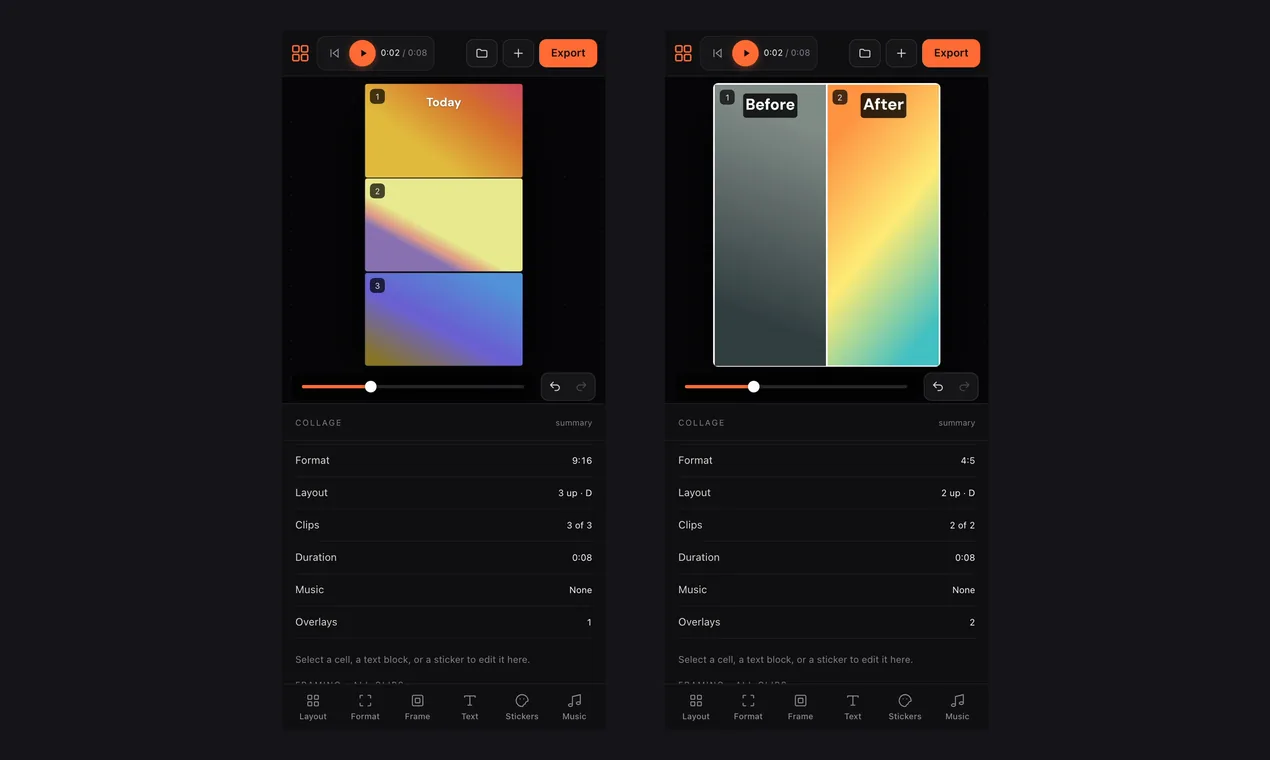
The video has no watermark and no end card. Want to place every clip yourself instead? Use the manual video collage editor.
Tips for a better result
- Fewer, better clips
- Cuts are timed to the music, so a short list of strong moments beats a long list of similar ones.
- Try all three styles
- Balanced, Energetic and Cinematic can feel very different from the same media — it is quick to try each.
- Match the shape to where it will be watched
- 9:16 for stories and short-video feeds, 1:1 for a feed post, 16:9 for YouTube or a TV.
- Mix photos and videos
- Photos add calm moments between clips; videos add motion. Together they make the pace feel varied.
- Use a laptop for long ones
- Everything is processed on your device, so a long or high-resolution video is faster on a computer than on an older phone.
- Keep one favourite for the start
- If one moment must open the video, make it one of your first picks and check that it opens the result.
On a phone
The same page works in a phone’s browser: choose photos and videos from your gallery, pick a style and press Create. When it is done, the share sheet sends the video straight to your messages or social apps.
Common questions
- How do I make a video from photos and video clips?
- Open the AI video collage at videocollage.onl/ai-collage, add 2 to 20 photos and videos, choose a style, length, format and song, and press Create video. You get a finished MP4 to download.
- Is it free, and is there a watermark?
- It is free, needs no sign-up and puts no watermark or end card on the video.
- Are my photos and videos uploaded?
- No. The analysis, the editing and the final MP4 are all made on your own device, in the browser tab.
- Can I do this on my phone?
- Yes. Open the page in your phone’s browser and choose media from your gallery. A computer is quicker for long or high-resolution clips.
- Can I choose the music?
- Yes — pick a song from the free library before you press Create, or change it and create the video again.
- What if I want full control over the layout?
- Use the manual video collage editor, where you choose the layout and place and trim every clip yourself.
More guides: AI video collage · make a video collage by hand · travel video · vertical video for TikTok and Reels · collage with music