How to make a virtual band or choir video
A virtual band video puts every player in their own cell of a grid, all playing at once, exported as a single video. Here is how to make one from separate recordings with a free editor that runs in your browser.
The short version
Open the editor1.Record every part on its own
Each player films their part separately, all to the same guide — a click track, a backing recording or a count-in — so the parts fit together. Ask everyone to start the same way, for example with a clap or a count, so the starts are easy to line up later.
2.Open a grid with one cell per player
3.Drop each recording into a cell
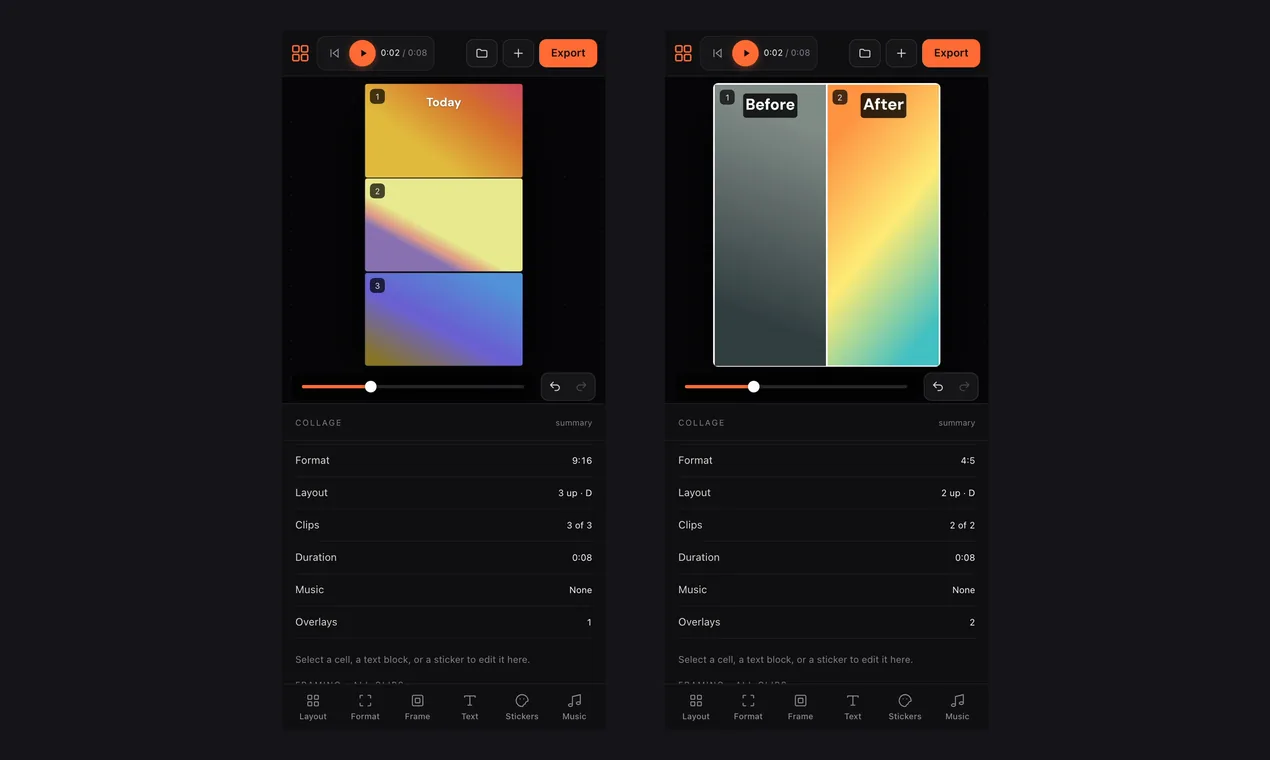
Press Add media and choose all the recordings at once; they fill the cells in order. Drag a cell's clip to swap players around, and drag inside a cell to move and zoom the picture so every face is in frame.
4.Line the parts up and set the sound
Trim each clip on the timeline so the clap or count-in happens at the same moment in every cell, then press play and listen. Every clip keeps its own sound and they play together; lower a clip's volume if one part is too loud, or mute it if you are using a separate backing track from the Music tab instead.
5.Export the band as one video
Press Export and choose MP4. All the clips and their sound are mixed into one video, made in your browser with no upload and no watermark.
Tips for a virtual band video
- Everyone wears headphones
- Playing along to a guide through headphones keeps the guide out of each microphone.
- Start every take the same way
- A clap or a spoken count gives you a clear moment to line up.
- Match the framing
- Similar distance and a plain background make the grid look like one band.
- Landscape clips fill a grid best
- Film sideways if you can, so the cells are filled without cropping a lot.
- Balance by ear
- Listen with headphones and adjust each clip’s volume until no player stands out.
On a phone
Most players will film on a phone, and the same editor opens in a phone browser — the clips can go straight from the camera roll into the grid.
Common questions
- Does the sound of every player play at once?
- Yes. Each clip keeps its own audio and they all play together; you can raise, lower or mute any clip, and the exported video has them mixed.
- Are the parts synced automatically?
- You line them up yourself by trimming each clip so a clap or count-in happens at the same moment. Recording everyone to the same guide track makes this much easier.
- How many players can I fit?
- Up to 15 cells. A 2×2 grid holds four, a 3×3 grid holds nine.
- Is it free, and is there a watermark?
- It is free, with no sign-up and no watermark on the exported video.
- Are the recordings uploaded?
- No. Everything happens in your browser; your files stay on your device.
More guides: video grid maker · two videos side by side · make a video collage · let AI make the video